Help centreYour team中文
Sign policies on your phone (for workers)
What a worker does with their staff link: enter the code, read each policy, sign with initials.
This guide is for workers. Your manager sends you a staff link. You need no login and no app.
Steps
- Open the link from your manager on your phone.
- The page asks for a six-digit code. Ask your manager for it. They get it in CareHelm.
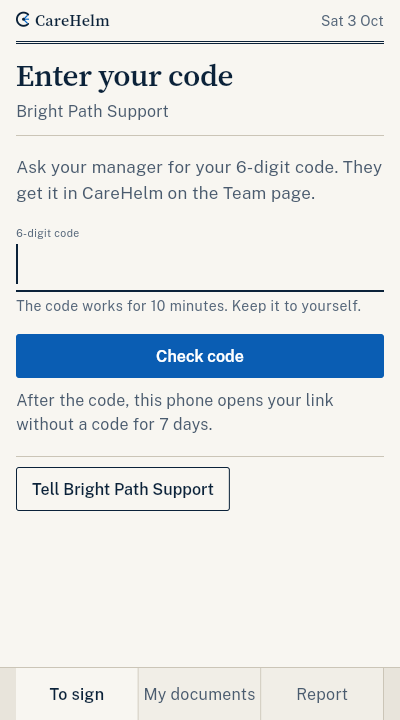
- Type the code and press Check code. You see what you need to sign.
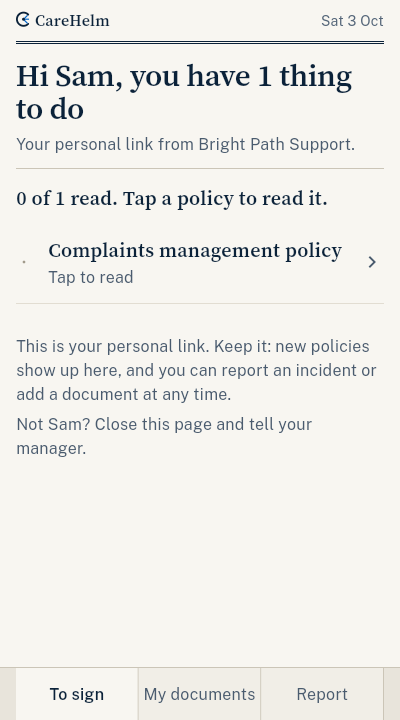
- Tap a policy to read it. At the end, tick the box and press Back to my list to sign.
- When you have read every policy, type your initials and press Sign.
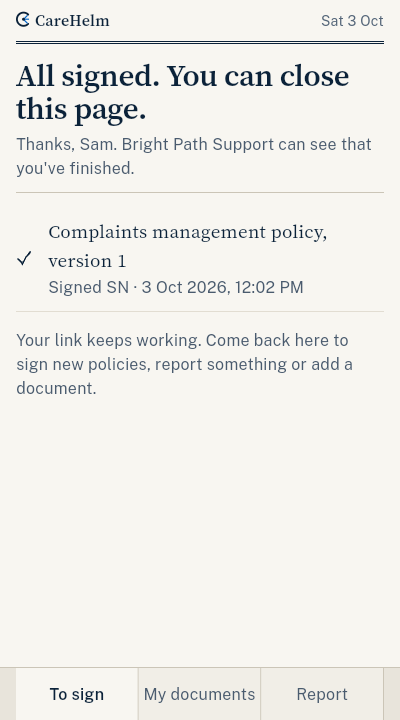
Also on your link
- My documents: send your NDIS worker screening clearance number and photos of your certificates, like first aid, with their expiry dates.
- Report incident: report an incident. Say what happened and where. Your manager gets the report straight away.
Good to know
- Your link keeps working. New policies show up on it.
- CareHelm records your name, the time and the policy version when you sign.
- You see only your own documents.