Help centrePolicies and documents中文
Import the files you already have
Upload your policies, certificates and registers in one go, check each file, then see what is still missing.
Import takes a whole folder, a ZIP or single files. CareHelm sorts each file, you check each one, and a report shows what your files cover.
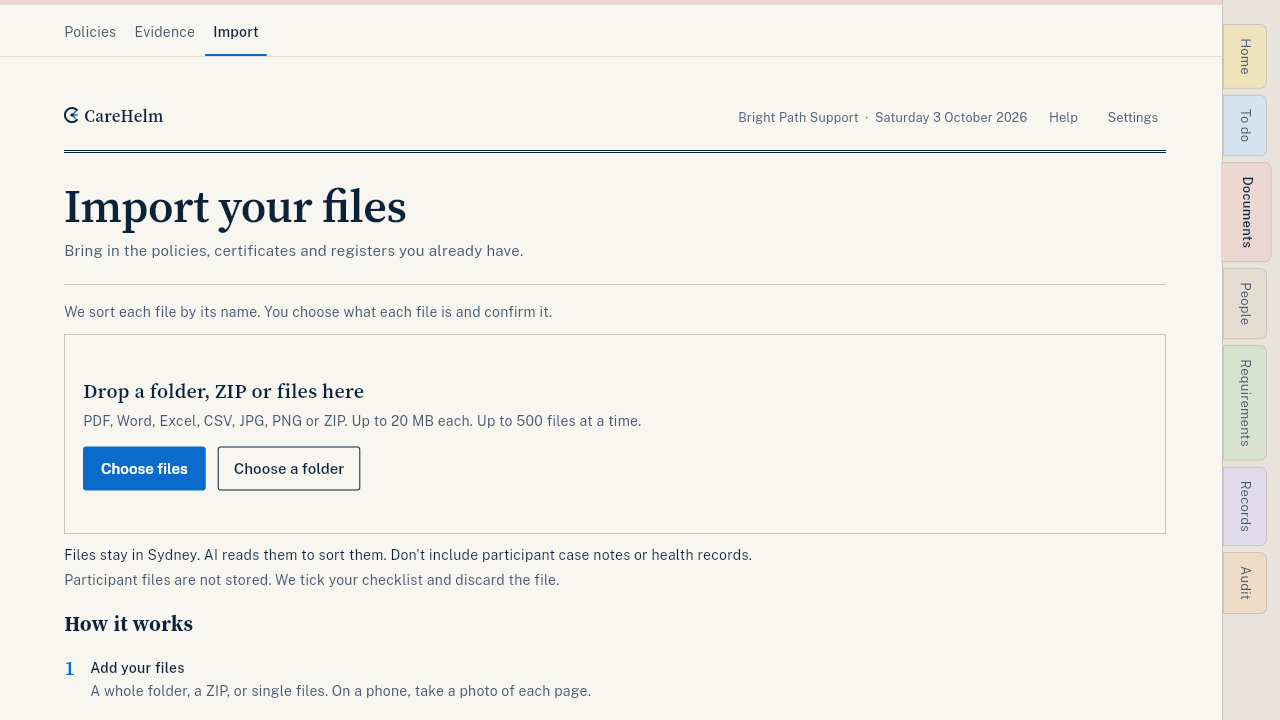
Steps
- Open Documents, then Import.
- Press Choose files or Choose a folder, or drop a folder or ZIP on the page. On a phone you can press Take photos.
- The first time, CareHelm asks before AI reads your files. Press I understand, use AI drafts to let AI sort them and read their dates and names. Press Not now to sort them by file name.
- Wait for All files sorted. You can start checking while sorting goes on, or leave and come back later.
- Check each file: what it is, whose it is and its dates. Press Confirm to save it, or Skip this file to skip it.
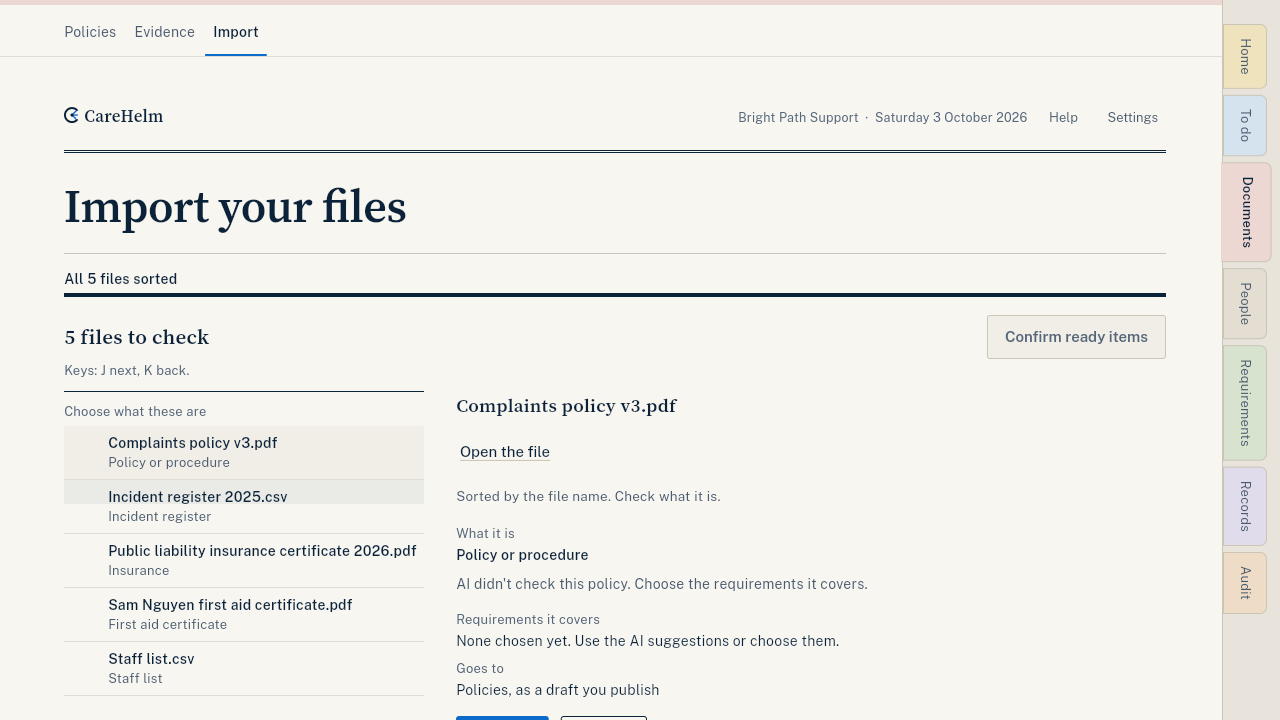
- When every file is checked, press See what your files cover.
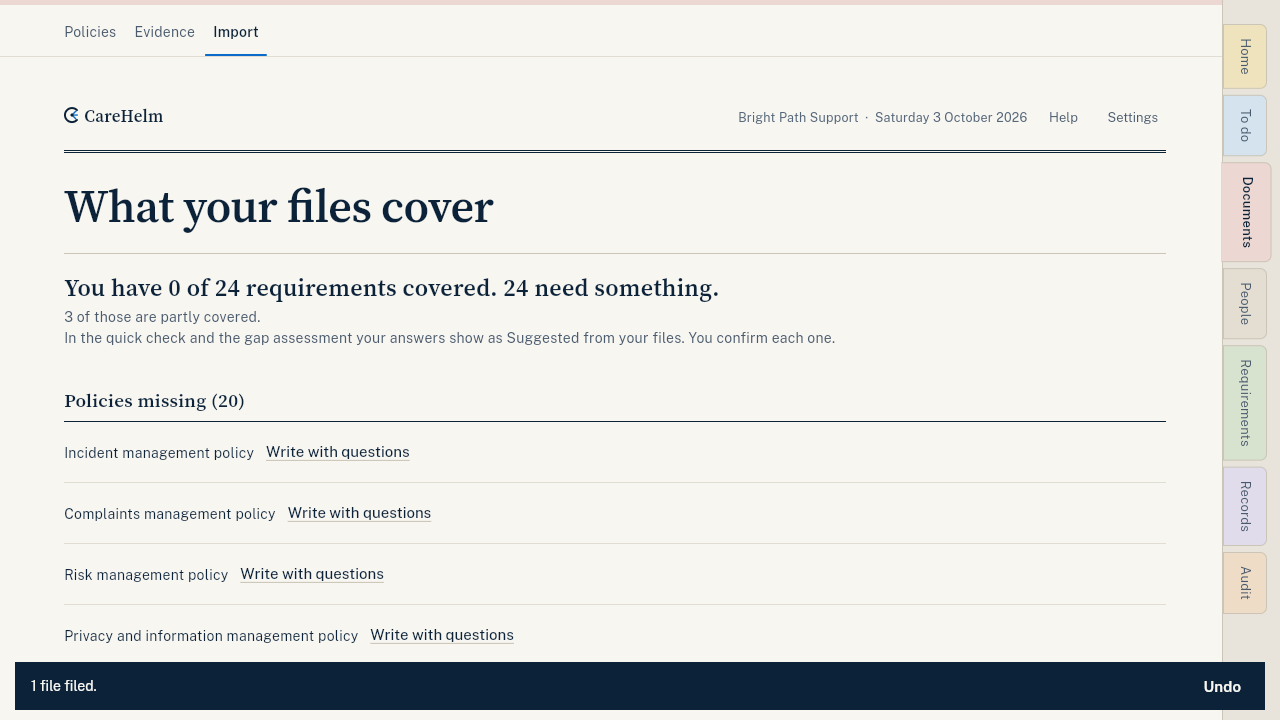
- Use the buttons in the report to fill the gaps, like Answer questions to draft it or Add evidence.
- Press Finish and discard the rest.
Good to know
- PDF, Word, Excel, CSV, JPG, PNG or ZIP. Up to 20 MB each and 500 files at a time.
- Files are stored in Sydney. To sort them, an AI service outside Australia reads them. Don't include participant case notes or health records.
- A participant record is not stored: CareHelm ticks your participant checklist and deletes the file.
- Nothing is used until you confirm it. A file that is already in CareHelm is flagged so you don't add it twice.
- Uploaded policies come in as drafts. Publish them from Policies.
- Finishing skips any file you haven't confirmed and deletes the uploaded copies.